Mini-Tutorial
This is a mini tutorial for how to create Polls in Zoom.
Getting Started
To create Polls for your upcoming Zoom meeting, you will first need to visit ucf.zoom.us.
Then, click Sign in on the webpage and enter your NID credentials when the MyUCF page appears. This is so that you can access your UCF Zoom account.
Once logged in to your UCF Zoom account, navigate to the Settings tab on the left-hand side of the webpage. You will need to enable the Zoom polling feature in the settings. If the Zoom polling feature is not enabled, you will not be able to create Zoom Polls.
Under the Settings tab, navigate to In Meeting (Basic) and search for the Meeting Polls option. Make sure to toggle this setting on to enable Polls.
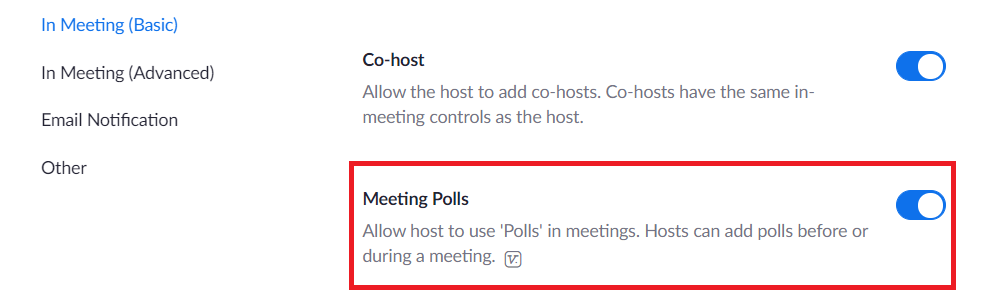
Image: The Zoom Meeting Polls setting toggled on
Creating Polls
Once you have enabled the Poll feature, you can begin creating Polls in your upcoming meetings. To begin, visit the Meetings tab on the left-hand side of the Zoom home page.
Under the Upcoming Meetings section, click the meeting you would like to create the Polls in. This is how you will setup the Polls in advance.
Scroll to the bottom of the Meeting details and click Add underneath Poll.
Enter a title for the Poll and your first question. If you would like to make the poll Anonymous, click the Anonymous check box. This will keep the participant's polling information anonymous in the meeting and in the reports.
If you want participants to be able to choose only one answer, select single choice for the question. If you want participants to choose multiple answers, select multiple choice.
Type in the answers to your question and click Save at the bottom. This will add the Poll to your meeting so you can launch it later.
If you need to add new questions, click Add a Question. This will create a new question for that poll.
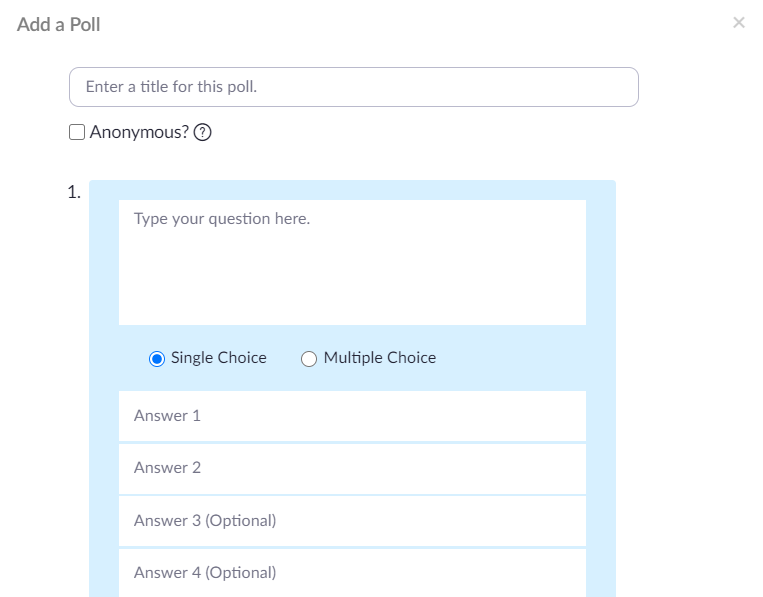
Image: Adding a new Poll in a Zoom meeting
Launching a Poll
Start the scheduled meeting as normal and look for the Poll button on the bottom of the meeting. This button is used to access the Polls that were scheduled in advance.
After clicking Polls, find the Poll you would like to launch. Click Launch Poll to send the Poll to all meeting participants. As the participants vote, the host will be able to see the results live.
When ready to stop the poll, click End Poll. This will prevent participants from voting anymore and save the results from the participants that have already voted.
To share the results with the participants in the meeting, click Share Results. Participants will then see the results of the polling questions.
Click the Re-launch button if you would like to restart the Poll. This will reset the Poll and let the participants vote again.
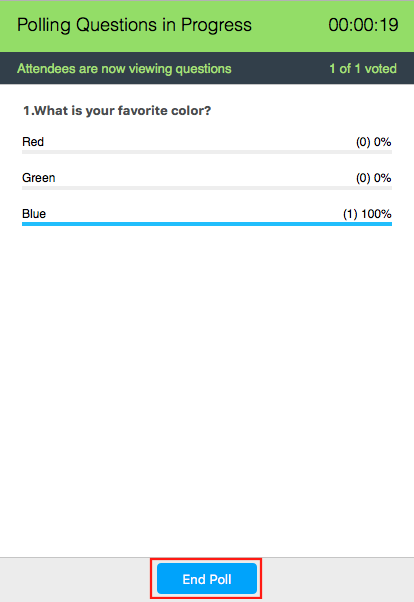
Image: The results of a Zoom Poll