Cooking Demo Lab Crestron User Guide
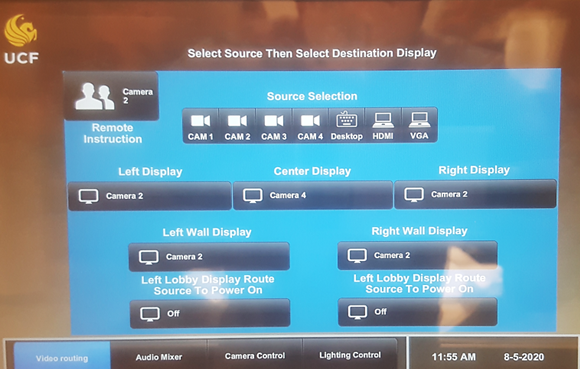
This is a user guide for how to use the Crestron system in the Cooking Demo Lab at UCF Rosen College. Below is a reference image for what the system will look like when first used:
Adjusting lights, audio, and camera
Lights
To adjust the classroom lights:
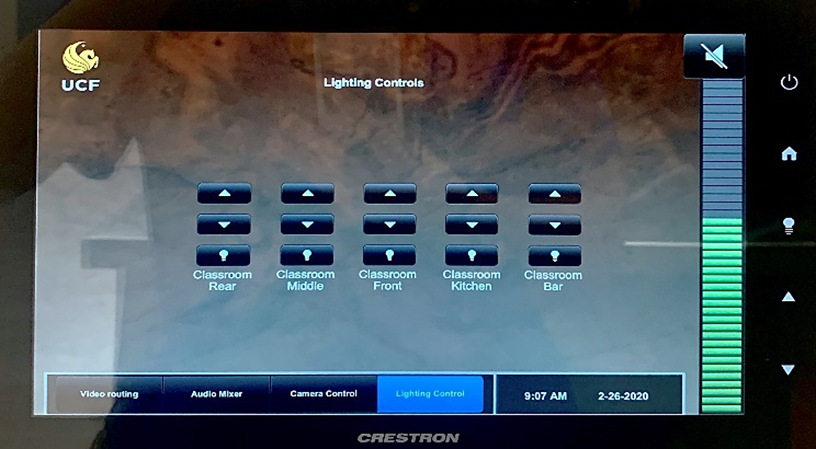
Select Lighting Control on the bottom of the screen.
Tap the light bulb icon to turn classroom lights on for a specific area.
Tap the upward arrow icon to brighten the classroom lights, or the downward arrow icon to dim the classroom lights.
Tap the light bulb icon again to turn off the classroom lights for a specific area.
Audio
To adjust the classroom audio:
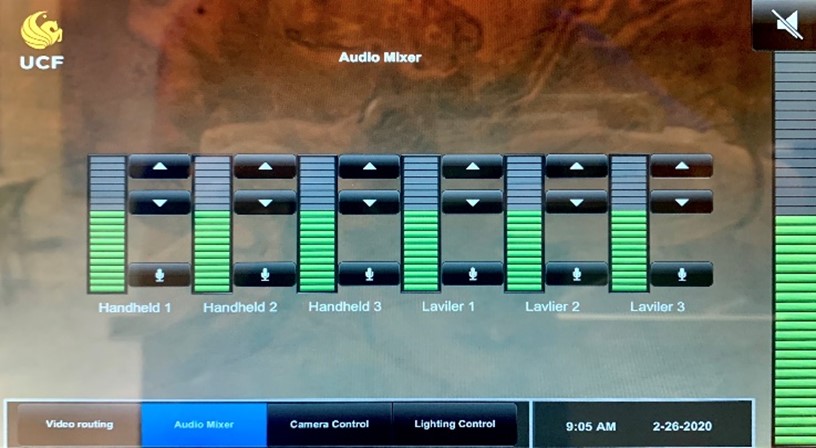
Tap Audio Mixer on the bottom of the screen.
Tap the upward arrow icon to increase the sound for the specified device,
or tap the downward arrow icon to lower.
Tap the microphone icon to mute the audio of a specific device. Tap the microphone icon again to unmute the audio of a specified device.
For overall volume, swipe up on the large mixer bar to the right
of the screen for higher volume, and down for lower volume.
Camera
Classroom cameras layout:
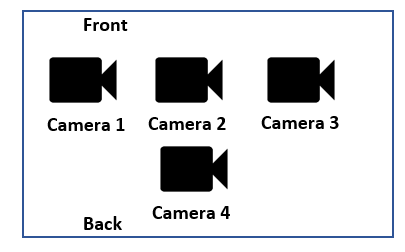
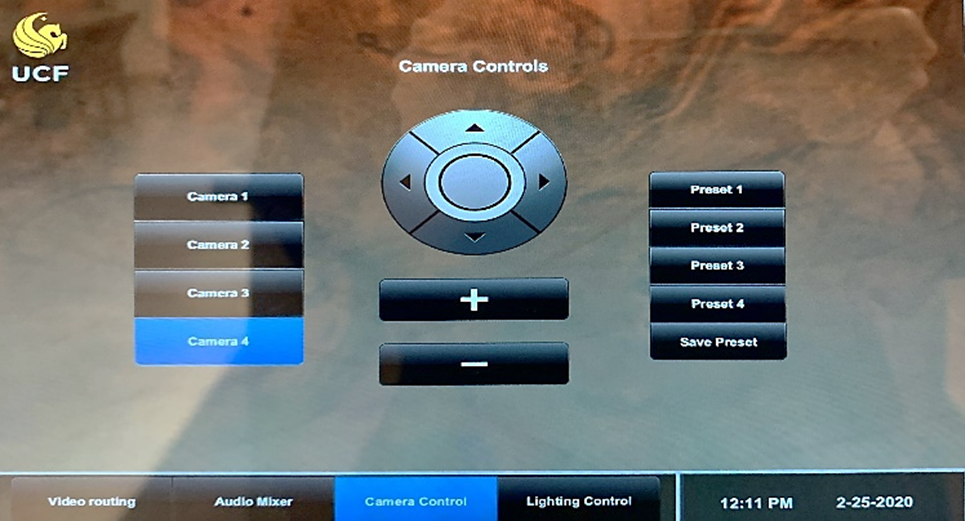
To adjust the classroom camera:
Select Camera Control on the bottom of the screen.
Select Camera 1, Camera 2, Camera 3, or Camera 4.
Select the plus sign icon to zoom in on the screen, or select the minus sign icon to zoom out.
To save a new camera preset:
Select the desired camera and adjust the controls.
Tap Save Preset.
Select Preset 1, Preset 2, Preset 3, or Preset 4.
To mute all audio, select the muted speaker symbol on the right of the screen above the mixer.
Display the computer screen on TV
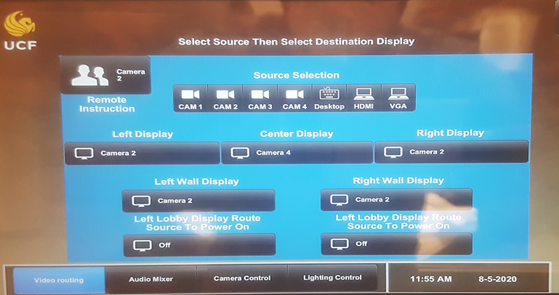
To display the computer screen on a TV:
Press the Power icon on the Crestron display.
Under Source Selection, tap the Desktop icon.
Tap a destination Display icon.
Recording the classroom
Use the VLC Media Player app to record the classroom:
Open the VLC Media Player app on the computer
Select Media in the upper left corner of the menu.
Select Open Capture Device from the drop-down list.
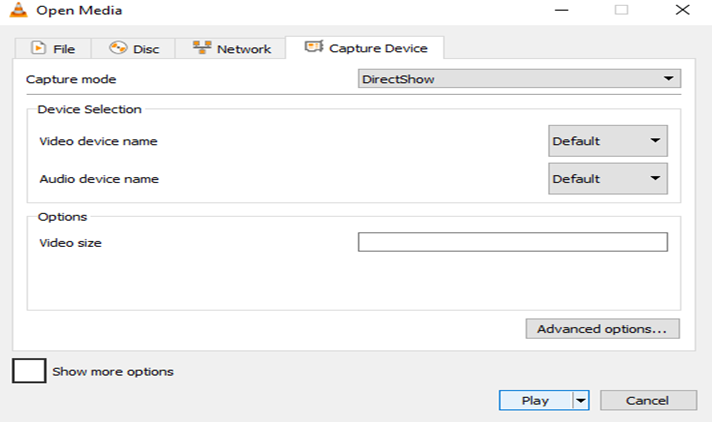
When the Open Media window appears, select the Capture Device tab.
In the Capture Device tab, click the drop-down panel for Capture mode.
Select DirectShow.
Select Play at the bottom of the window to exit out of the window.
Click the triangular Play icon in the bottom left hand corner of VLC Media Player app.
Right click the screen and select Record.
To PAUSE the recording, right click the screen and select Pause.
To RESUME the recording, right click the screen and select Record.
To STOP the recording, right click the screen and select Stop.
The recording will be saved on the computer under the Videos folder.