Save and edit a YouTube video in Adobe Premiere Pro 2020
This is a brief user guide with instructions on how to save an MP4 file from a YouTube video, and then perform some basic editing in Adobe Premiere Pro 2020.
Downloading a YouTube video
Go to youtube.com and pick a video that you would like to download.
From the search bar, highlight the video URL and right click to copy the link.
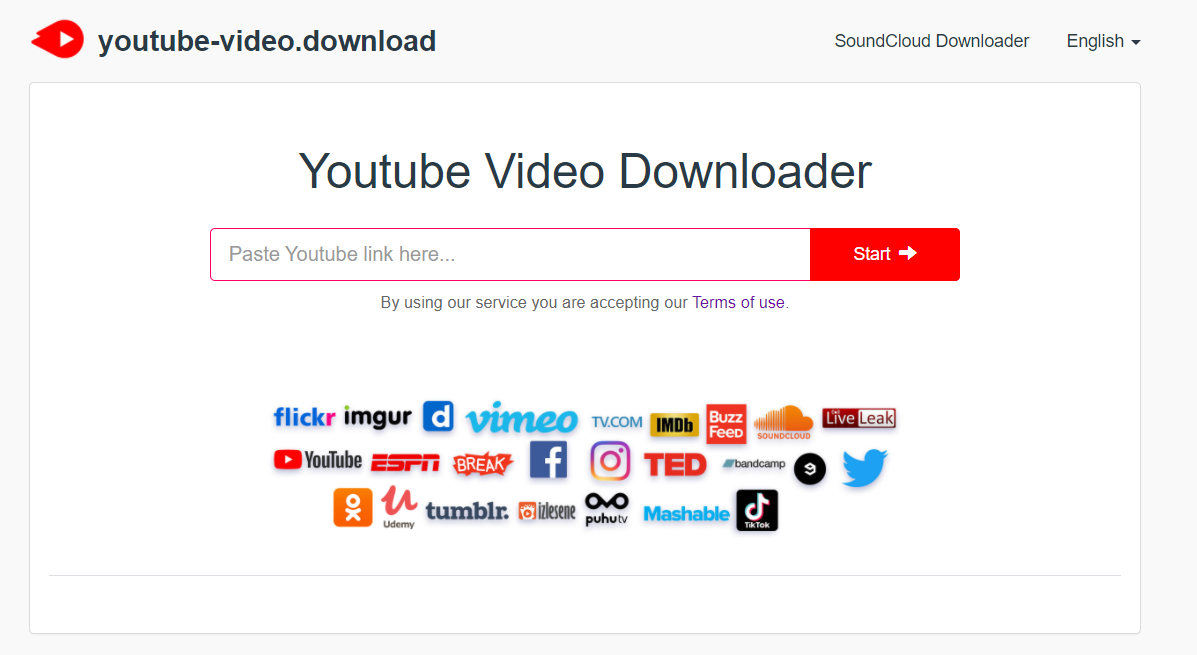
Find a third-party website to use for downloading the video, such as https://youtube-video.download/en1/.
We will be using the third-party website listed in step number 3 for the example. On the third-party website, there will be an input bar that you will paste the YouTube video’s URL into.
Click start and then download the MP4 file once it is finished.
Importing a video into Adobe Premiere Pro
Open the Adobe Premiere Pro application.
Click the “New Project” button and then enter a name for the project. Click “OK” at the bottom of the window when finished.
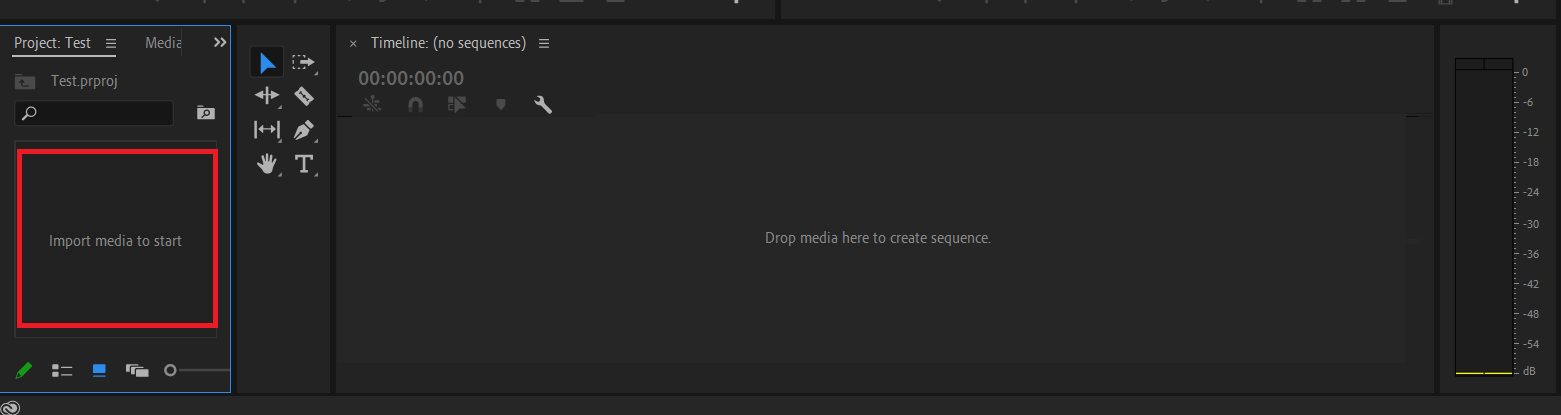
Double click on the “Import media to start” box located on the bottom left of the application window.
Go to the location you saved the YouTube video under earlier and then select the video. Click “Open.”
Editing a video in Adobe Premiere Pro
Once the video is imported into Adobe Premiere Pro, left click on it from the bottom left of the application window and drag it to the timeline.
To shorten the video, left click on the end of the video track, then hold and drag to where you would like it to be cut.
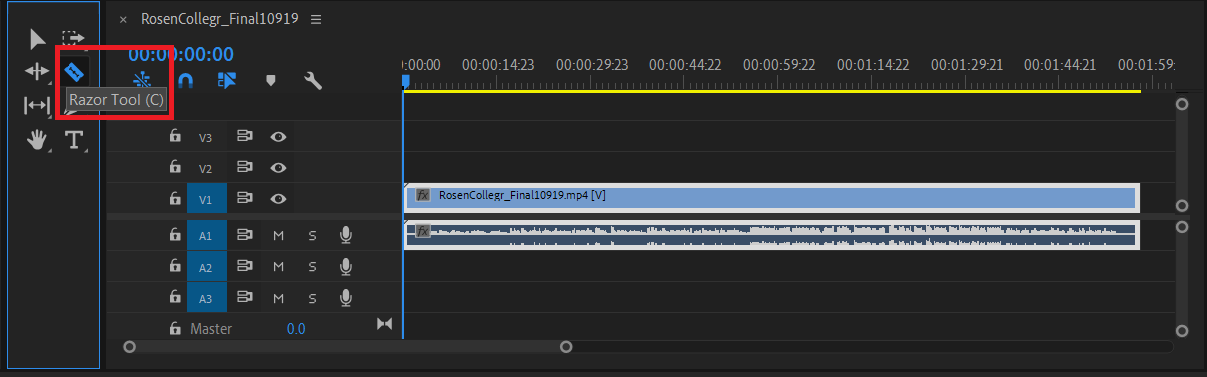
To split the video track, click on the “Razor Tool” and then hover over the exact time you would like the video track to be split and then left click on it.
To add a video effect, click on the “Effects” tab, and then click “Video Effects.” Choose the effect you would like to add to the video and then left click and drag the effect to the video track.
To add a video transition, click on the “Effects” tab, and then click “Video Transitions.” Choose the transition effect you would like to add to the video and then left click and drag the effect to the video track.
To add an audio effect, click on the “Effects” tab, and then click “Audio Effects.” Choose the audio effect you would like to add to the video and then left click and drag the effect to the audio track.
Exporting a video from Adobe Premiere Pro
When you are finished editing the video, the next step is to export it from Adobe Premiere. Go to the “File” tab on the top left and click “Export”, then “Media.”
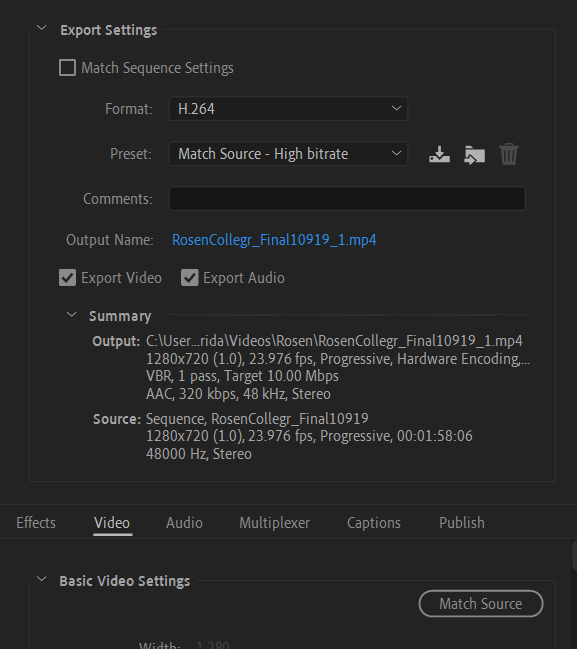
Set the “Format” setting to “H.264” and then “Preset” setting to “Match Source – High bitrate.”
Make sure that the “Export Video” and “Export Audio” options are both checked.
Click “Export.” Once the video is finished exporting you will be able to access it at any time from your files folder.