How to Embed Videos on Boomla
This is a quick guide on how to embed videos on your Boomla website. Boomla utilizes a YouTube video package in order to embed larger videos on your website.
Uploading Videos on YouTube
To get started, you first need to upload your video on YouTube.
Visit youtube.com and click “Sign In” on the top right corner of the page.
Choose an account to sign in with and then enter your password. Click “Next” when you have entered your sign in credentials.
Once you are signed in, click your profile picture in the top right corner of the page.
Click “YouTube Studio” from the list of options.
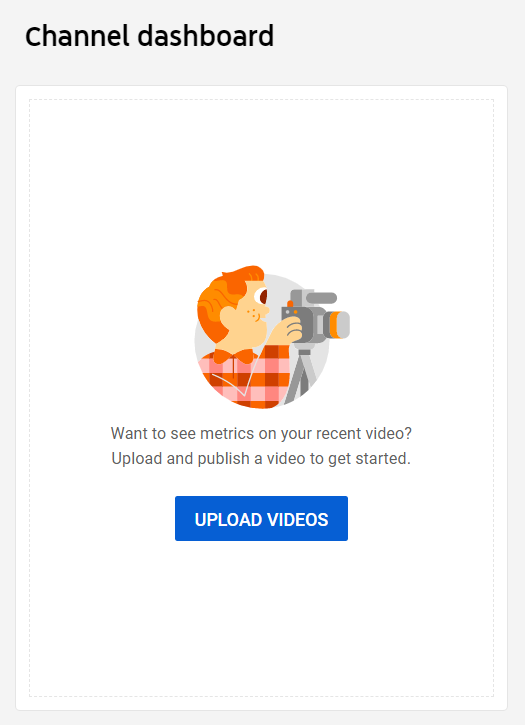
Click the “Upload Videos” button from your Channel dashboard.
Click the “Select Files” button from the Upload videos window.
In the window that appears, go to the folder that the video you want to upload is in and then select the video. Click “Open” once you have selected it.
Type a title and a description for the video in the Details window.
In the Thumbnail section, upload your preferred thumbnail or choose one from the automated results.
In the Audience section, select “Yes, it’s made for kids” or “No, it’s not made for kids.”
In the Age restriction (advanced) section, select “Yes, restrict my video to viewers over 18” or “No, don’t restrict my video to viewers over 18 only.”
Click “Show more” to adjust the settings for Paid promotion, tags, subtitles and more.
Click “Next.”
Click “Next” on the Video elements and Checks windows.
On the Visibility window, select whether you would like your video to be published as “Private”, “Unlisted”, or “Public.”
Underneath the preview of your video, press the copy video link button.
Click “Save.”
Using the Boomla YouTube Video Package
Visit boomla.com and click the “Log in” button on the top right corner of the page.
Type in your credentials and then click “Log in.”
Click on “Website Builder” on the top center of the page and then click “Packages.”
On the Packages page, scroll down to the YouTube video package and then click “Install.”
Select the website you want to install the package.
Once you have installed the package, you will receive a message saying the installation was successful. Click the blue button on the page that directs you to your website.
Go to the page on your website that you would like to embed a video.
Click the plus icon and then click the “youtube.boomla.net” package.
Drag the “youtube-video” item from the left hand panel to your page.
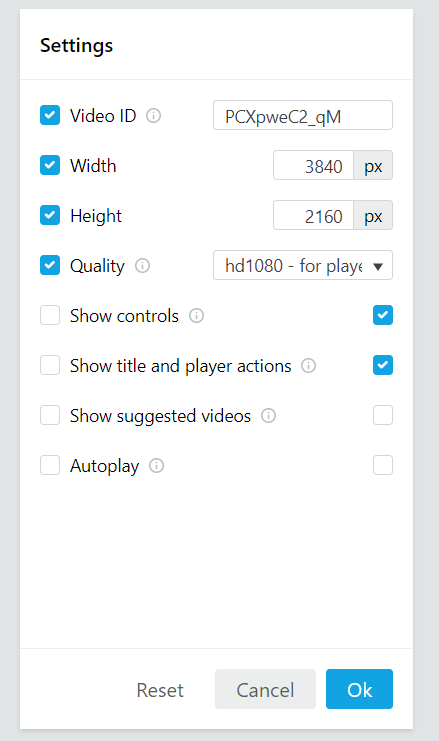
Right click on the YouTube video and then click “Settings.”
Paste the numbers on the end of your YouTube link that you copied earlier into the “Video ID” field.
Adjust the width, height, and quality settings to your preference.
Click “OK” when you are finished.